


Ever hit "play" on a podcast or any audio recording and cringe at the unexpected curse words? In fact, whether you're producing a podcast, YouTube video, or corporate training material, clean audio isn't just about family-friendliness—it's about credibility and professionalism, so ensuring your audio is free of explicit language or curse words is essential.
Fortunately, audio censoring has never been easier. In this article, we'll explore effective solutions to automatically remove profanity or manually add a beep for clean audio.
In this guide, you'll learn how to replace part of an audio clip in both standalone audio files and video projects, so you can fix mistakes fast and keep your edits seamless and professional. Let's dive in!
Method 1 Automatically Remove Profanity and Any Custom Terms in Audio
Is there anyway to "auto censor" curse words?
If you're looking for an automatic way to remove swearwords or any custom terms in the audio with AI, you're come to the right place!
Here, we'll introduce FlexClip's AI text-based editor to you. It can automatically convert your podcast, any audio recording, and even video to an editable transcript and you can edit it by editing text to remove unwanted part, such as profanity, curse words, and any custom terms, etc.
Now, let's check the detailed steps below to learn how to remove swearwords or any custom terms in the audio with FlexClip AI:

Step 1 Access FlexClip's Text-Based Editor
Click the Censor Audio with AI button above to access FlexClip's text-based editor, then upload the audio file you'd like to process. This tool can helps you convert your audio file to an editable transcript and automatically cut and trim it by delete text to remove any unwanted parts in your audio. Pretty easy!
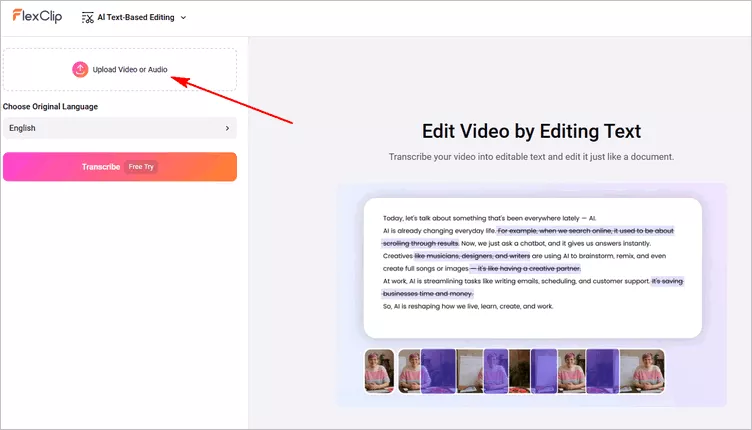
Automatically Remove Profanity and Any Custom Terms - Access FlexClip's Text-Based Editor
Step 2 Remove Swearwords and Any Custom Terms with AI
Once uploaded, click the Transcribe button to start transcribing the audio track into editable text. After a few seconds, you'll get a transcript of the audio, and you can manually delete any text content to cut and remove any part of your audio. Here, you can also try its search feature to find any unwanted information, such as swearwords and any custom terms, or filler words for a quick removal.
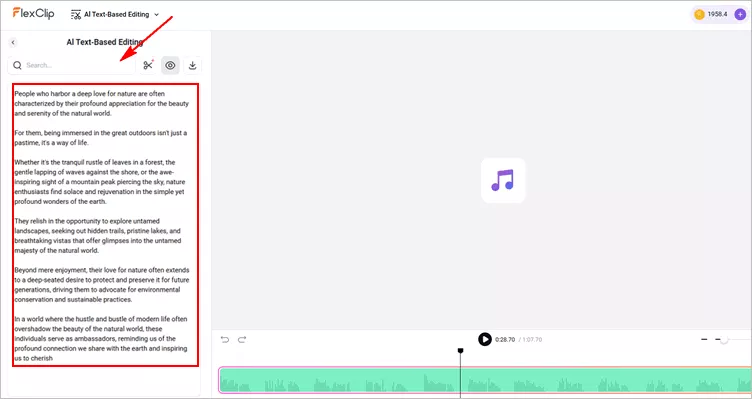
Automatically Remove Profanity and Any Custom Terms - Transcribe and Cut with AI
Step 3 Preview and Download Your Censored Audio
Now, you've got all the unwanted words removed from your audio track, click the play button to preview the censored audio, checking if the final audio sounds OK. Finally, click the Export button to download the censored audio directly.
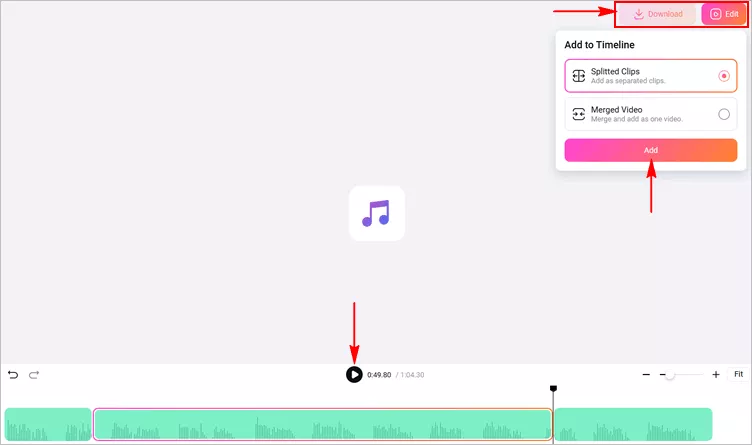
Automatically Remove Profanity and Any Custom Terms - Preview and Download
Need more precise trim or edits to prefect your audio, FlexClip offers a built-in editor for you to manually edit your audio track flexibly. Just click the Edit button then select the Splitted Clips option to take your audio clips into the editor and make edits freely.
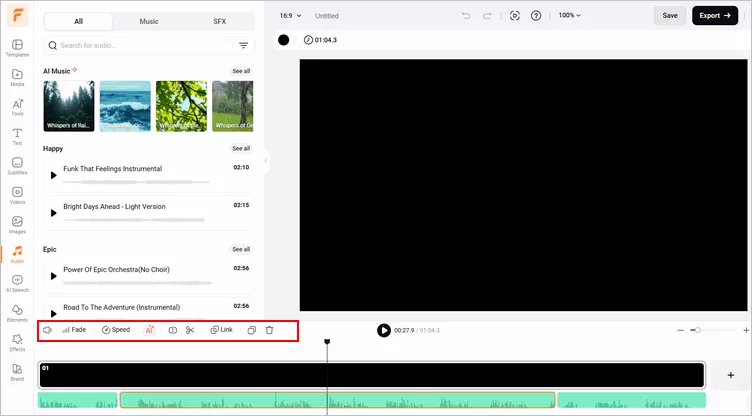
Automatically Remove Profanity and Any Custom Terms - More Edits
When it's OK, you can preview the edited audio, if satisfied, just click the Export button and select the Audio option to locally save your new audio track. If not, you can continue editing your audio track using FlexClip's powerful editing features.
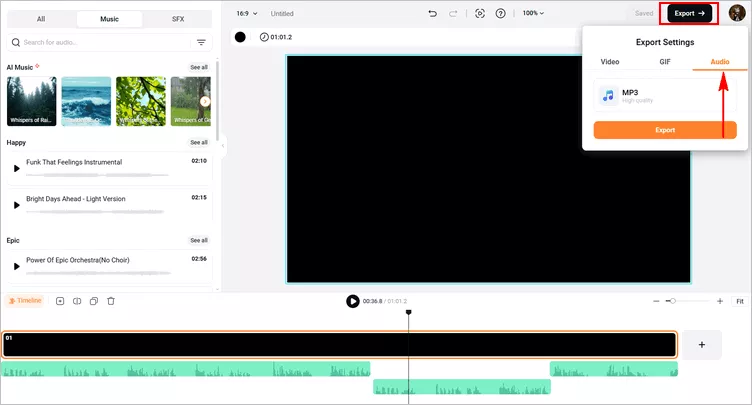
Automatically Remove Profanity and Any Custom Terms - Export Your New Audio
Method 2 Manually Censor Audio with a Beep for Clean Audio
Besides using the auto edit option to remove curse words from your audio track, you can also manually add a beep sound to censor your audio. Now, let's check the steps below to learn how to censor audio with a beep using FlexClip.
Step 1 Upload Your Audio File to FlexClip
Head to the FlexClip editing page, and go to the Media tab to upload your audio files from your PC, phone, Google Drive, One Drive or Dropbox, and then add the audio to the timeline. Remember to drag the black visual layer to adjust the project length and reveal the whole audio.
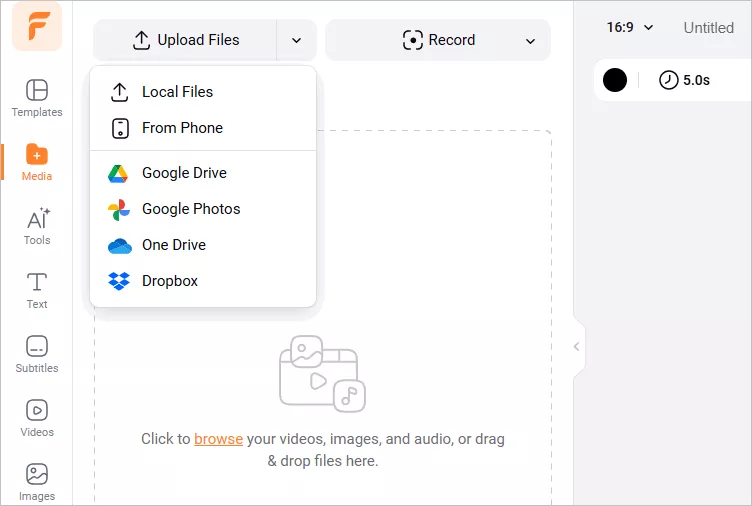
Manually Censor Audio with a Beep - Upload
Step 2 Find the Swearwords in the Audio
Play the audio and pause at a timestamp just before the swearing occurs, then click Split. Also go to where the swearing ends and click Split again. This will cut out the portion with the profanity.
Now, select the portion and find the volume icon to drag the slider all the way down to 0 to directly mute the swearing.
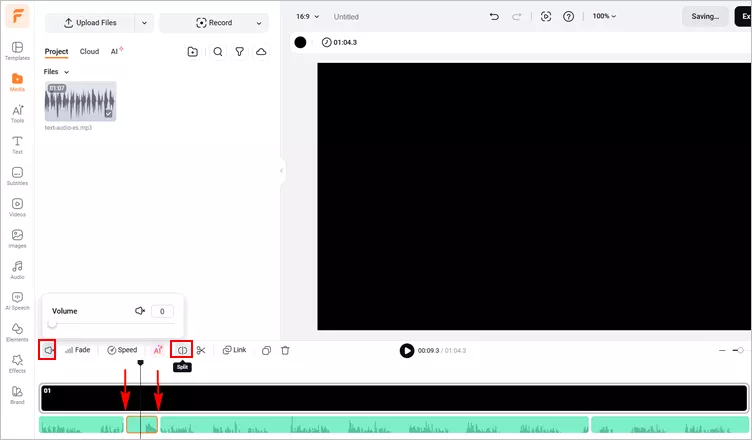
Manually Censor Audio with a Beep - Find the Swearwords in the Audio
Step 3 Add a Beep Sound to the Audio
To add a beep sound effect, you'll need to use one from your computer or direct from FlexClip's Audio library. For this, we're using one from the library.
Head to the Audio tab on the side panel, then go to the search box to search for a beep or bleep and then add it to the timeline. Here you can add as many beeps as you want to different parts of the audio.
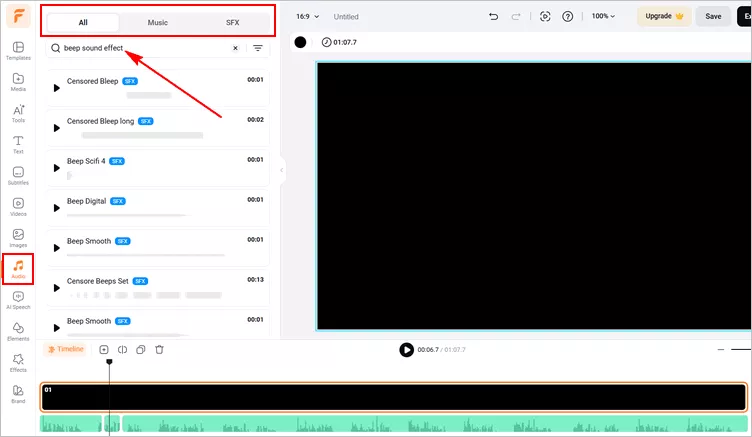
Manually Censor Audio with a Beep - Add Beep Sounds
Step 4 Edit the Beep Sound for a Prefect Censor Effect
Now, you can move the beep sound manually by dragging it to place each censor beep exactly where you want it to be. Then cut and trim the beep sound to perfectly cover the swearword, or make it longer by slowing down with the audio speed changer. You can aldo adjust the volume of the beep sound to achieve a better effect.
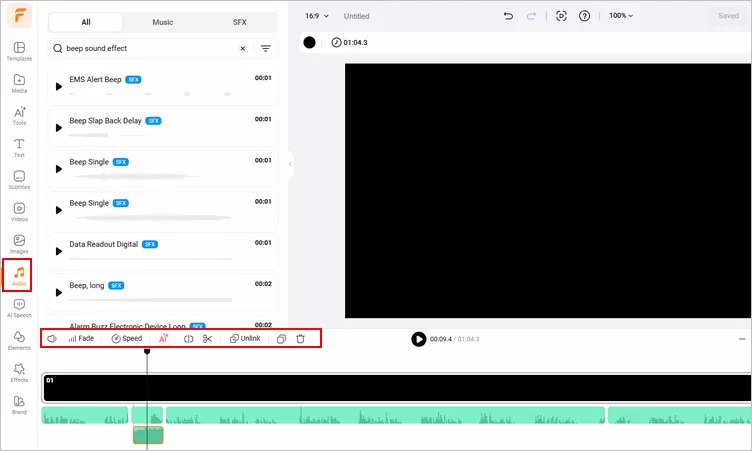
Manually Censor Audio with a Beep - Edit the Beep Sound
Once you're done, press play to preview the result. If you're unsatisfied, simply try FlexClip's audio editing tool to make more edits. Otherwise, click on Export and select Audio option to download your audio track.
Final Words
Swearwords and profanity can make it difficult for viewers to enjoy your audio or video project. Just use any of the methods we've introduced above to remove or mute them directly or add a censor beep to your audio to make them cleaner now!




FlexClip AI Video Maker
Reach professional-quality videos faster with easy editing tools, templates, and smart AI.
Start Now for Free
Hot & Trending
-

Best Ways to Find Music in YouTube Videos
-

Instagram Story Video Quality Bad After Upload? Fix It!
-

How to Repost Video on TikTok & How to Remove TikTok Repost
-

Improve Video Quality Online: 3 AI Video Quality Enhancers You Can't Miss
-

4K Convert to HD 1080p without Watermark: Best 4k Video Converters
-

Best 8 Free Video Editors - No Download Required
-

Top 13 Birthday Video Makers with Music and Effects Free
-

How to Search Filters on TikTok & Use a Filter You See - TikTok Filter Guide




